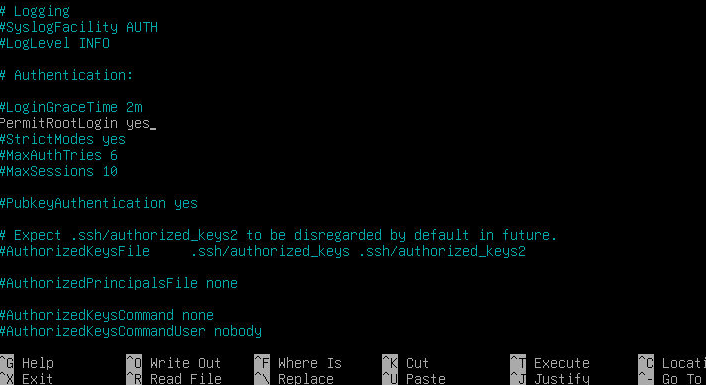
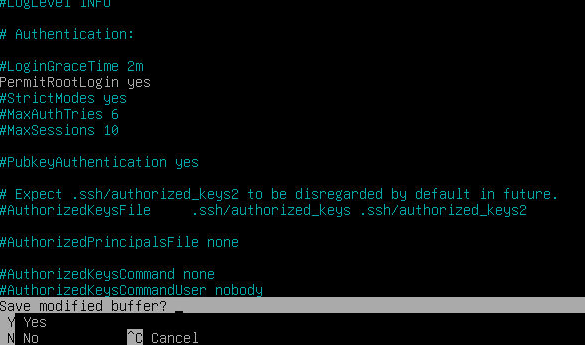
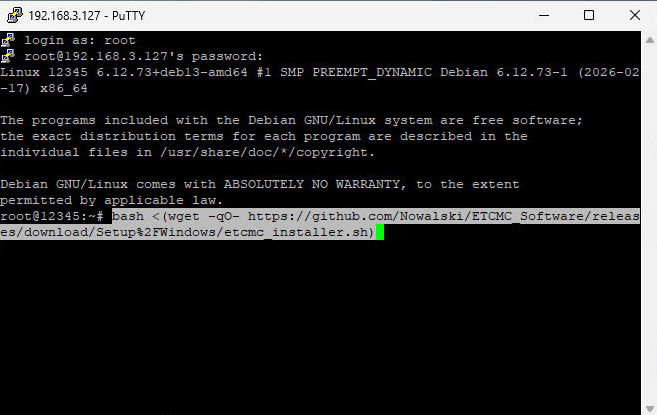
Optional remote setup: In this tutorial, root SSH is enabled so you can connect later via PuTTY.
This is optional — you can also continue working locally on the Debian machine (keyboard + monitor directly attached).
Write the ISO to a USB stick with Rufus (Windows) or a similar USB imaging tool.
Then boot the target machine from that USB stick.
Tip: If you use a remote server / mini-PC without a monitor later, finish the Debian installation first,
then continue either locally or via SSH (PuTTY) after enabling SSH.
2) Install Debian 13 (Headless base system)
The following steps cover the Debian installer flow. Some screens where you only click Continue are summarized,
while important choices are shown with screenshots.
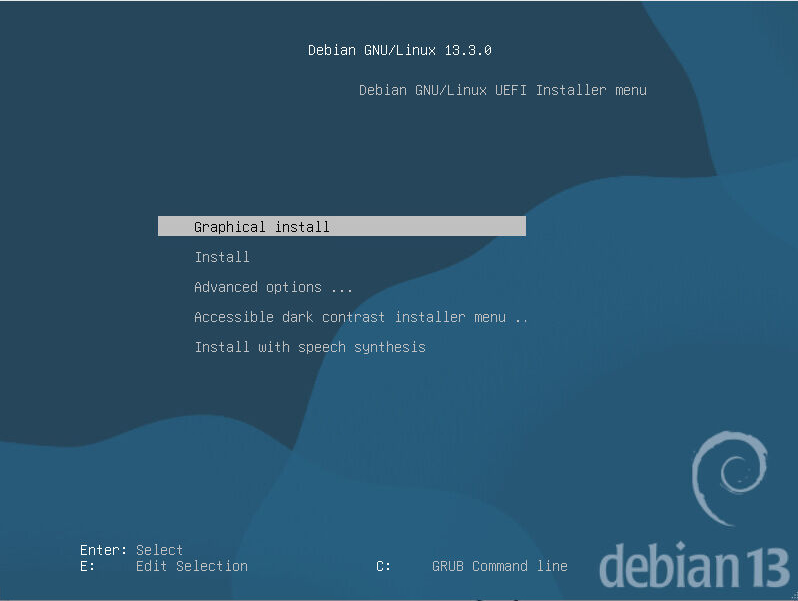
Boot from the Debian USB stick and select Graphical install.
Step 1: Start the Debian installer with “Graphical install”.
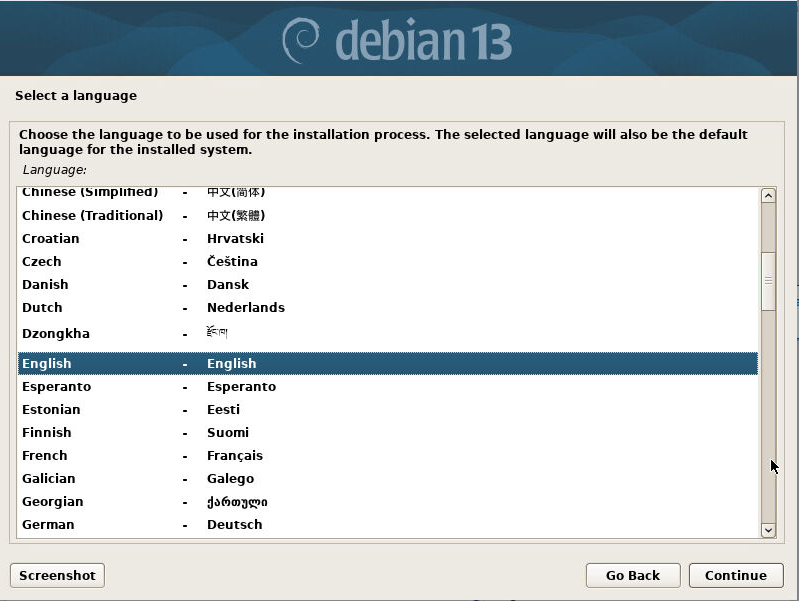
Select your installation language (example: English).
Step 2: Choose the installation language.
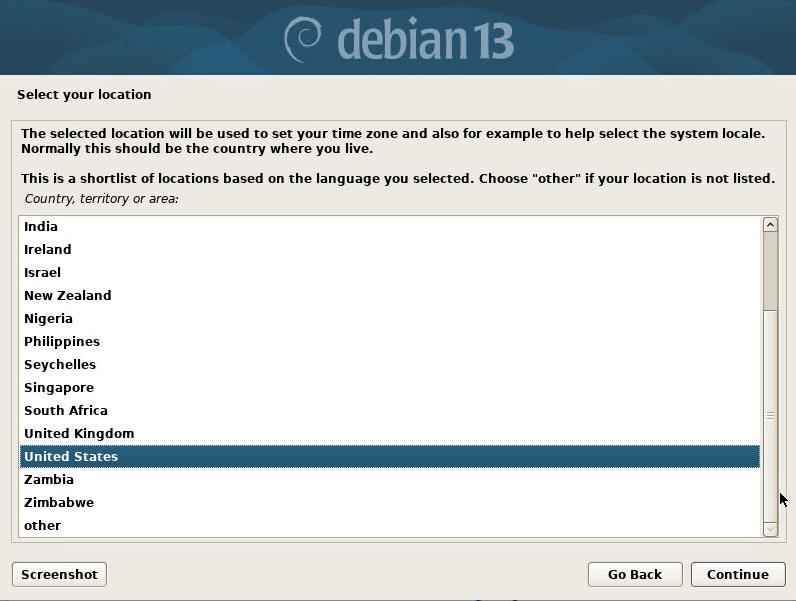
Select your location / country (used for timezone + locale defaults).
Step 3: Choose your location (timezone / locale region).
Select your keyboard layout.
Configure hostname / domain (or leave defaults if appropriate).
Create/set a root password.
Create a normal user (if prompted by the installer).
Continue through the mirror / package setup steps.
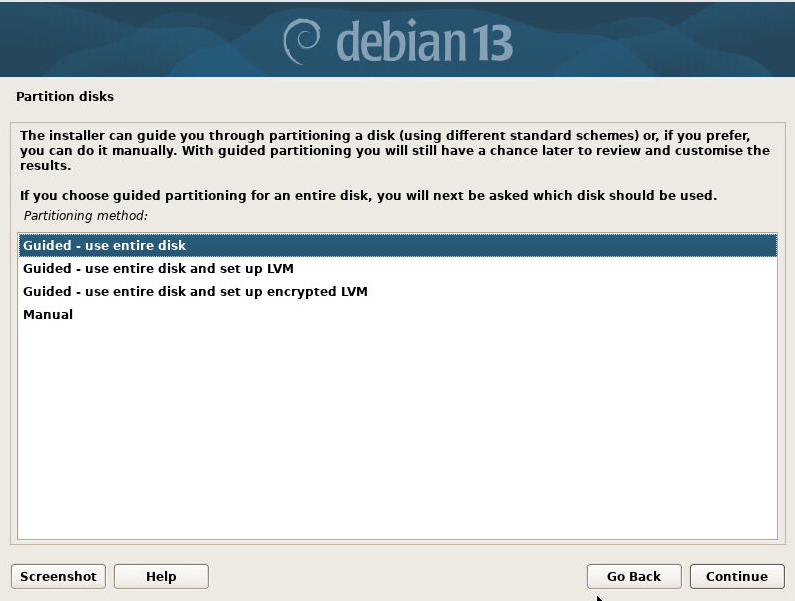
At Partition disks, choose Guided - use entire disk.
Step 9: Use guided partitioning for the entire disk.
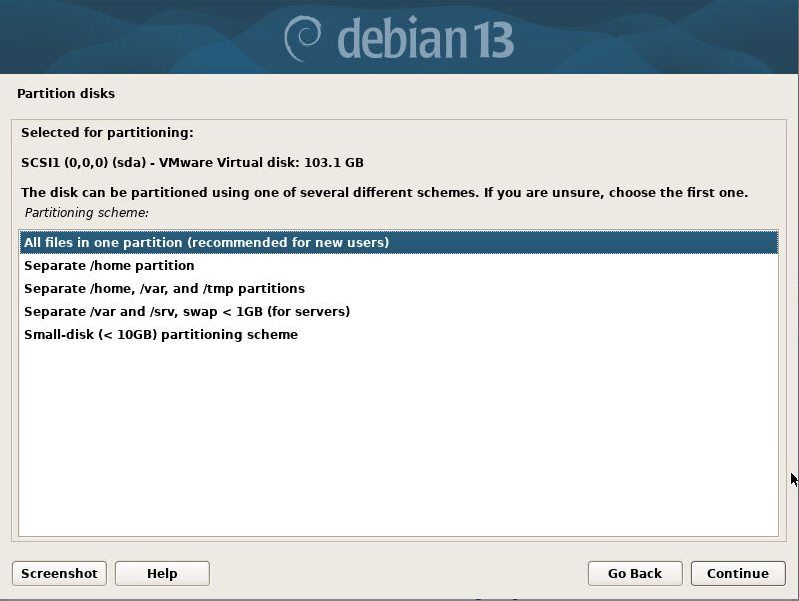
Select the partitioning scheme All files in one partition (recommended for new users).
Step 10: Select “All files in one partition”.
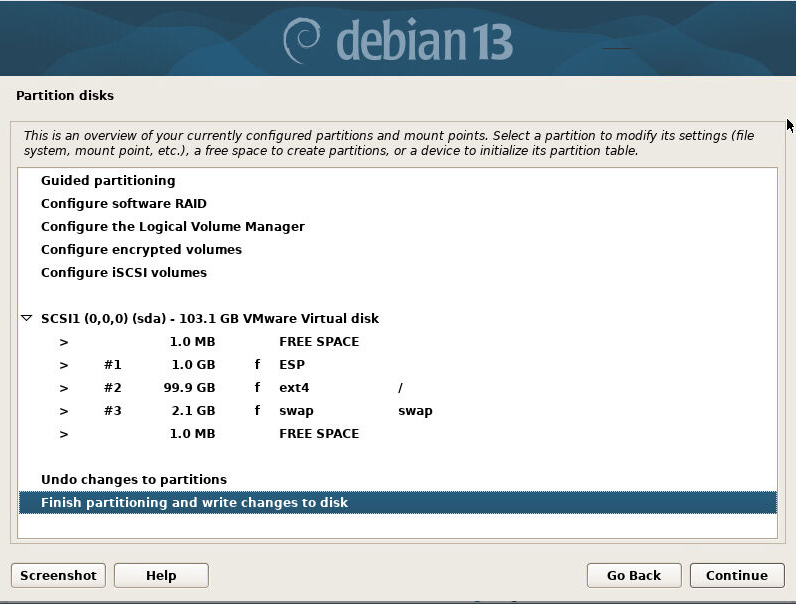
Select Finish partitioning and write changes to disk, then confirm the changes.
Step 11: Finish partitioning and write changes to disk.
Wait while the base system installs.
Continue through package manager / mirror prompts.
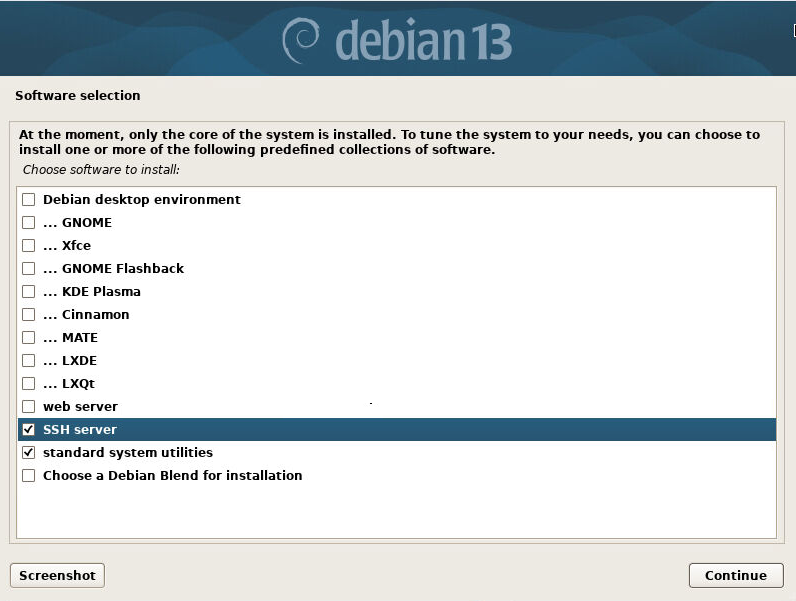
When you reach Software selection, keep it headless: select SSH server and standard system utilities.
Important: Select SSH server + standard system utilities (headless setup).
Do not select a desktop environment for this headless setup.
Install GRUB bootloader when asked, then finish the installation.
Remove the USB stick and reboot into Debian.
Headless reminder: The goal is a minimal Debian install with SSH access (no desktop UI required).
3) Enable root SSH (optional for PuTTY access)
This tutorial enables root SSH login to make remote administration easier (for example with PuTTY on Windows).
If you prefer, you can skip remote access and continue working directly on the Debian machine locally.
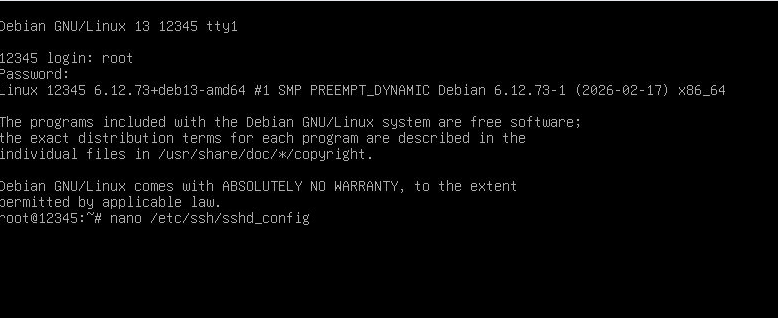
Log in as root and open the SSH configuration in Nano:
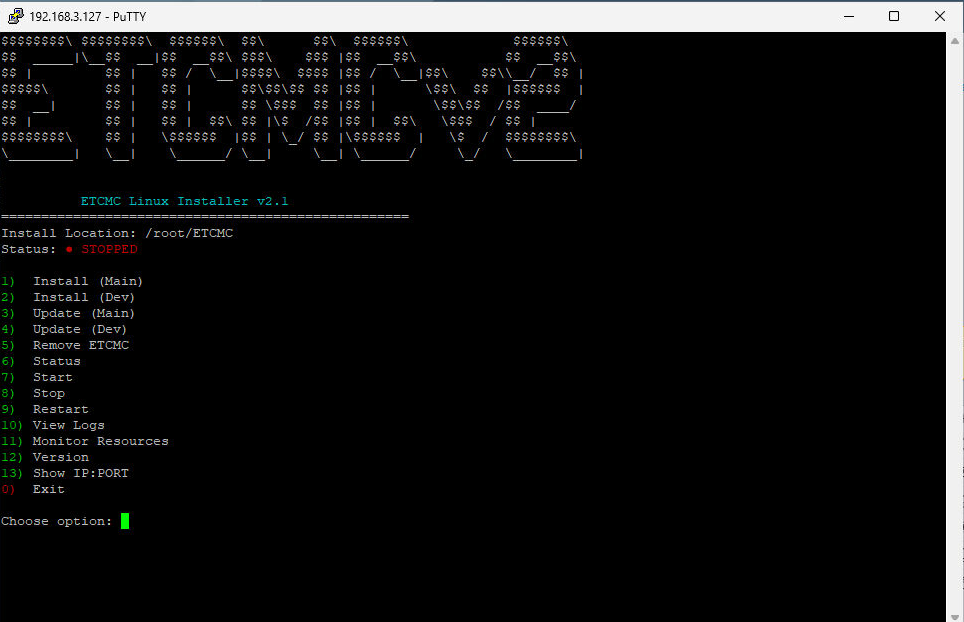
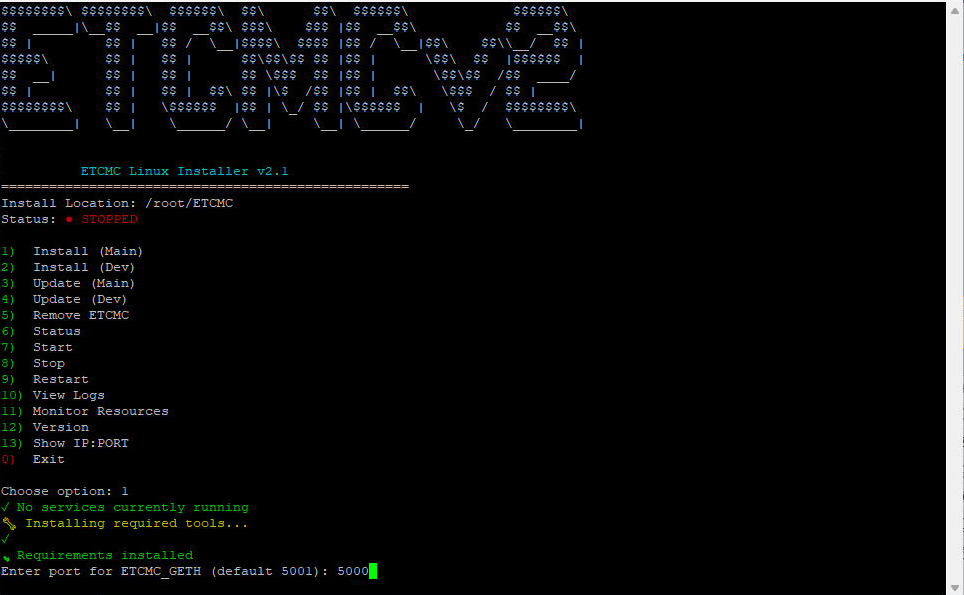
Enter the port for ETCMC_GETH (default is 5001; example here uses 5000).
Step 23: Set the ETCMC_GETH port (example: 5000).
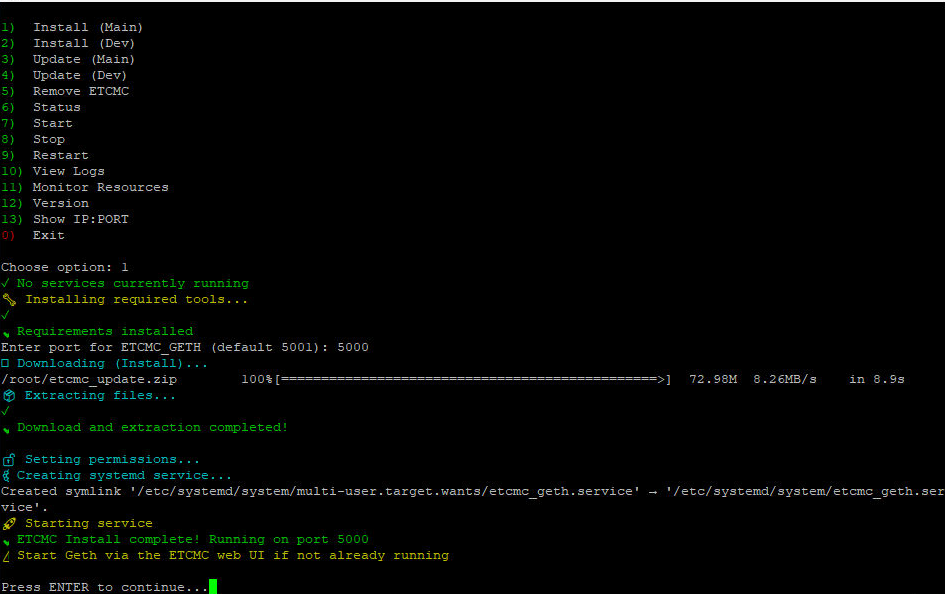
Wait until installation is complete and the service is created/started.
Step 24: Installation completed successfully.
Done: Debian + ETCMCv2 client are installed. Next, open the ETCMC web UI and register your node with your license NFT.
5) Open Web UI and register the node
From another PC on the same network, open a browser and go to: http://DEBIAN-IP:5000(replace DEBIAN-IP with the IP of the Debian machine, and 5000 with the port you chose in step 23)
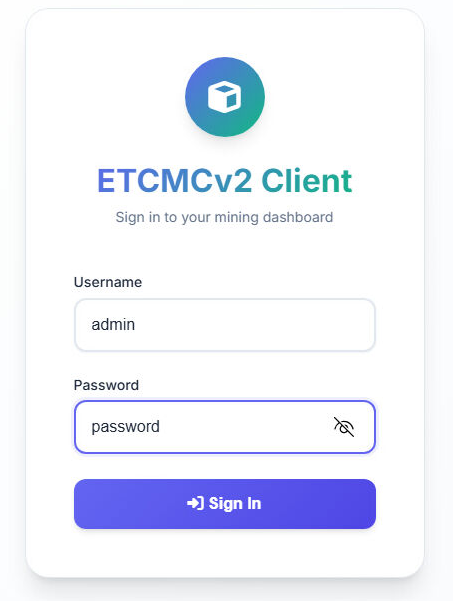
Open the ETCMCv2 web UI and sign in with the default credentials:
Username: admin
Password: password
Change the defaults: these are the factory credentials. Change them in the web UI
after your first login, especially if the node is reachable from outside your own network.
Step 25: Log in to the ETCMCv2 Client web UI.
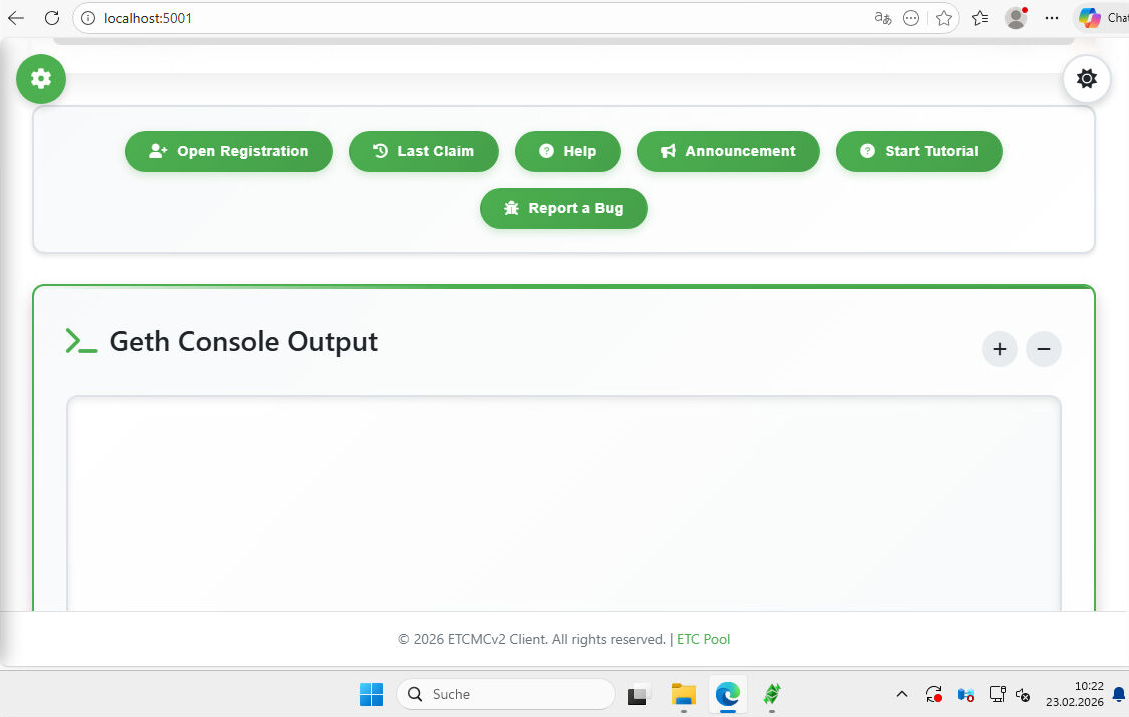
Scroll down and click Open Registration.
Step 26: Scroll down and click “Open Registration”.
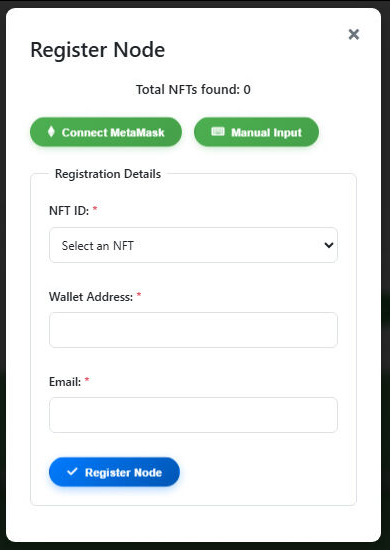
The Register Node window opens. There are two options:
Connect MetaMask (automatic)
Manual Input (manual wallet entry)
For this tutorial, use Manual Input.
Step 27: Choose Manual Input for this tutorial.
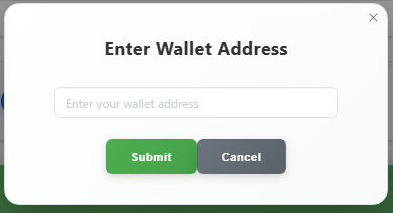
Enter your wallet address and submit it.
Step 28: Paste your wallet address and submit.
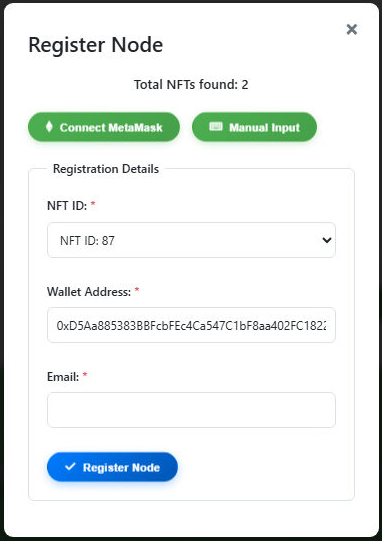
The registration form now shows available License NFTs.
Select an unused License NFT, enter your email address, then click Register Node.
Step 29: Select your unused License NFT and complete node registration.
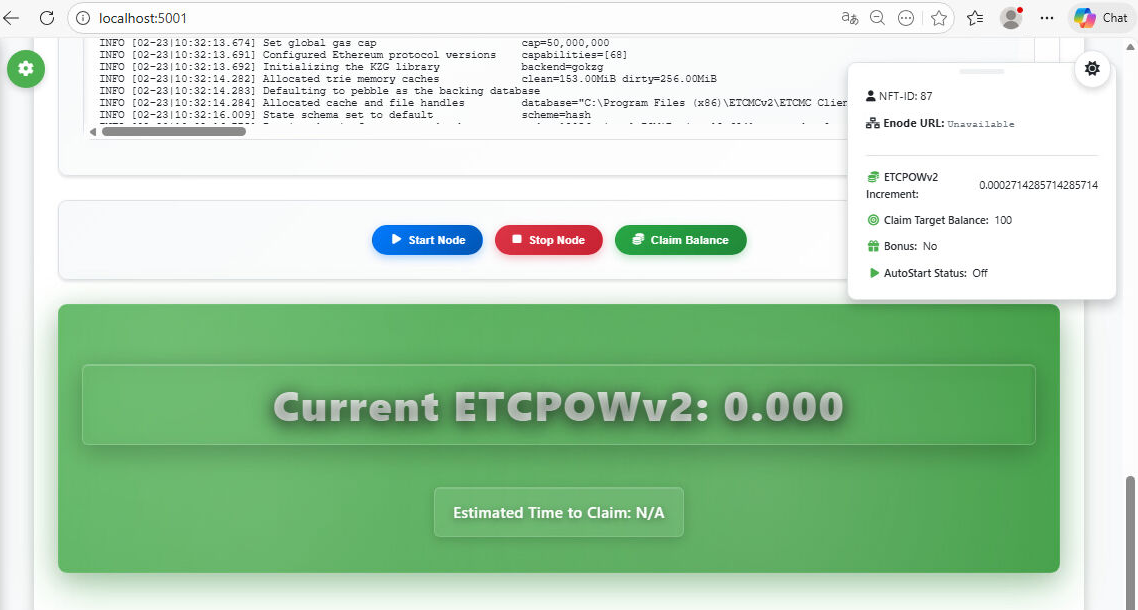
After registration, click Start Node.
Step 30: Start the node in the ETCMC web UI.
Node running: Your ETCMCv2 node is installed and registered. You can now monitor it from the ETCMC web UI.
6) Final notes
From step 25 onward, the process is essentially the same as in the Windows tutorial (web UI registration flow).
If you changed the default port during installation, use that port in the browser URL instead of 5000.
Make sure your selected License NFT is not already in use by another node.
If you prefer, you can later switch from manual registration to MetaMask-based workflows where supported.
.png)