.png)
How to Get a License NFT
How to get a License NFT (ETCMCv2)
This guide shows how to buy or obtain an ETCMCv2 License NFT on Ethereum Classic using the official license page. You will connect your wallet, choose a method (Mint, Claim Legacy, or Marketplace), and confirm the required prompts in your wallet (for example MetaMask).
Table of Contents
1) Before you start 2) Open the license page & connect your wallet 3) Choose a method (Mint / Claim Legacy / Marketplace) 4) Confirm in your wallet (spending cap + transaction) 5) After completion (My Licenses + Token ID)1) Before you start
Useful links
- License page — where you mint, claim or buy a license: main.etcmc.xyz/licenses
- DEX — swap into ETCPOWv2 if you need to top up: swap.etcmc.xyz
- Token setup — add ETCPOWv2 to your wallet first: Add ETCPOWv2 to MetaMask
Tip: If a button doesn’t work, try opening the page in your wallet’s in-app browser (MetaMask mobile) or ensure the MetaMask browser extension is enabled.
2) Open the license page & connect your wallet
- Open the official license page: https://main.etcmc.xyz/licenses
- Click Connect Wallet.
- Select MetaMask (or another supported wallet) and confirm the connection in your wallet.
3) Choose a method (Mint / Claim Legacy / Marketplace)
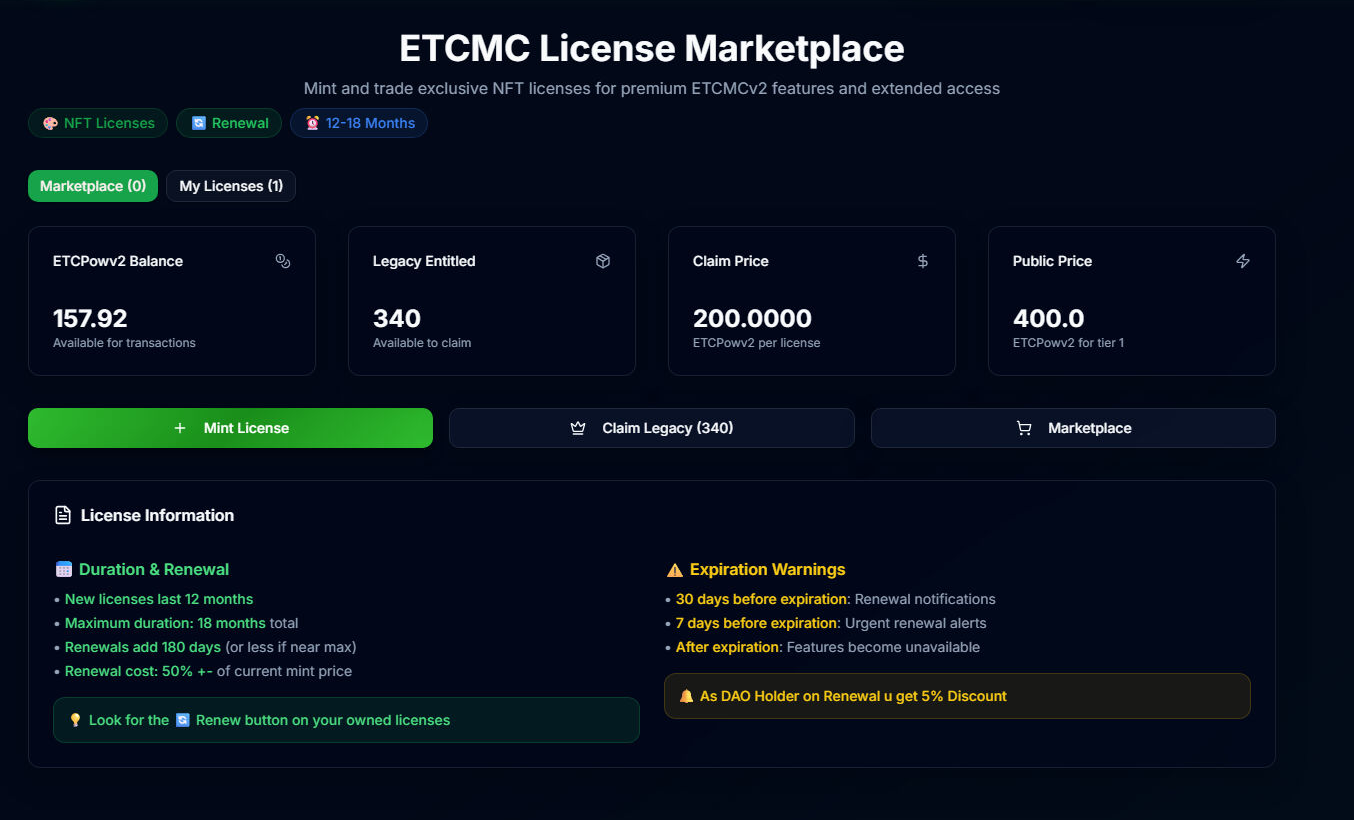
After your wallet is connected, you have three ways to obtain a license NFT:
Available options
- Mint License — Creates a brand-new License NFT.
- Claim Legacy — Uses a v1 license/NFT entitlement to mint a new License NFT, usually with a discount. (If you have legacy eligibility, the page will show it.)
- Marketplace — Buy License NFTs listed by other users (secondary market).
In most cases, you will use Mint License (new) or Claim Legacy (legacy discount). The Marketplace is for purchasing already-minted licenses from other users.
4) Confirm in your wallet (spending cap + transaction)
When you click Mint or Claim, your wallet will open and you must approve the prompts. Typically, there are two confirmations:
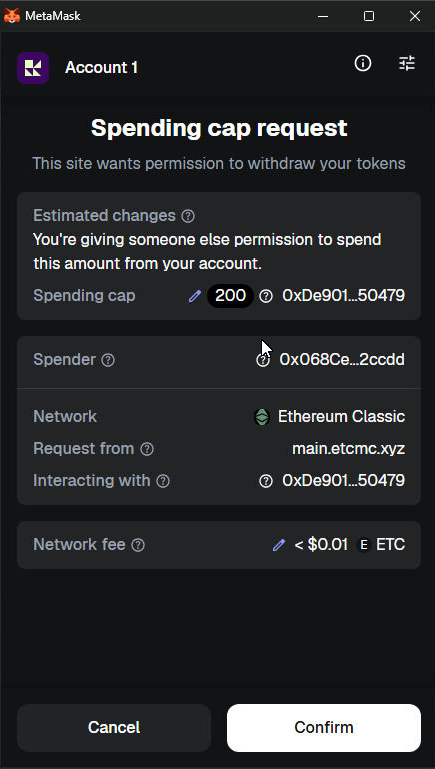
4.1 Spending Cap / Token Approval
First, MetaMask may show a Spending cap request. This allows the dApp contract to spend the required amount of tokens for the mint/claim. Review the amount and click Confirm.
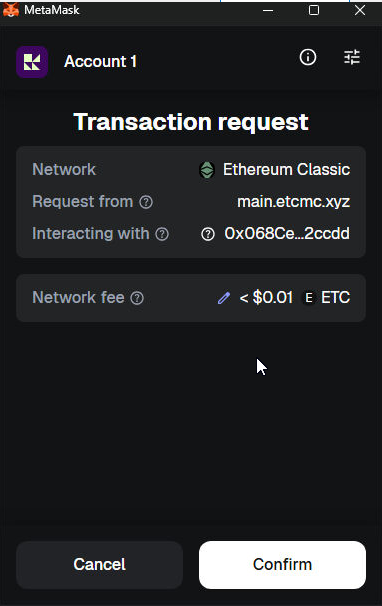
4.2 Transaction Confirmation
Next, MetaMask will show the actual transaction request. Confirm it to submit the mint/claim on-chain. (A small ETC network fee may apply.)
4.3 Wait for completion
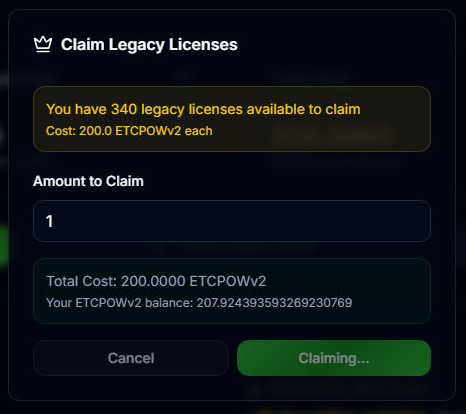
After confirming, the license page may show a Claiming... / processing state while the transaction is mined. This can take a moment depending on network conditions.
5) After completion (My Licenses + Token ID)
- Once the transaction is finished, refresh the license page (F5 / pull-to-refresh).
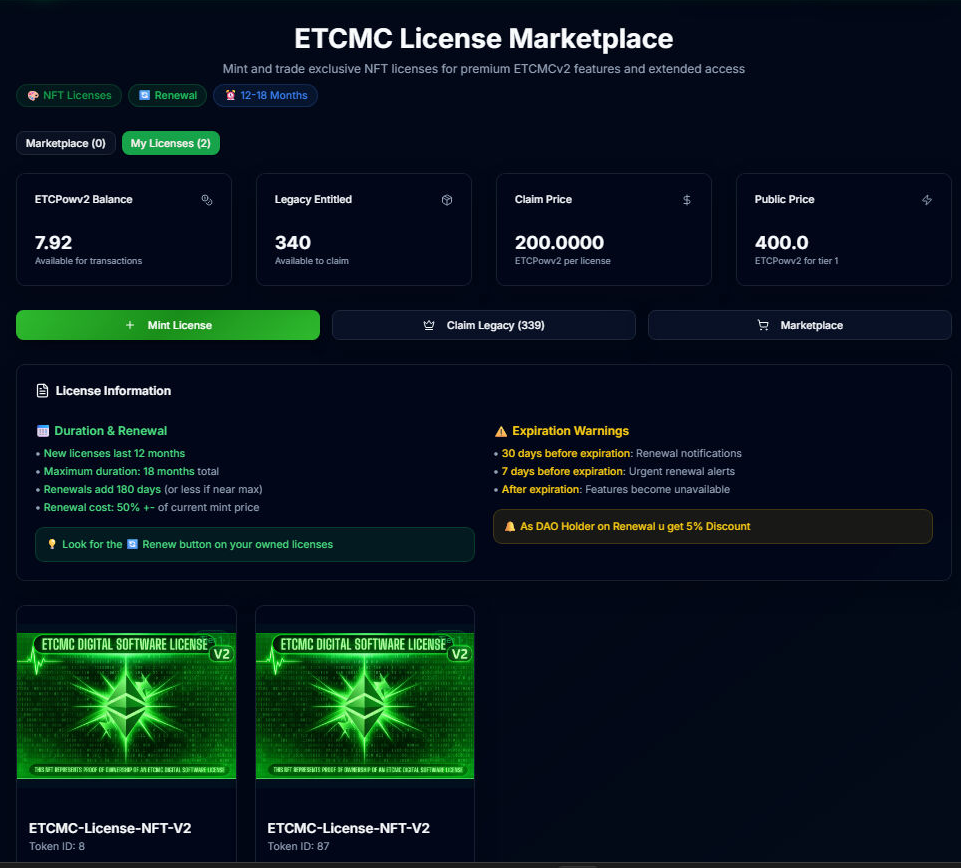
- Go to the My Licenses tab.
- Your new License NFT should appear there.
- Important: Note the Token ID of your License NFT — you will need it later for software registration.