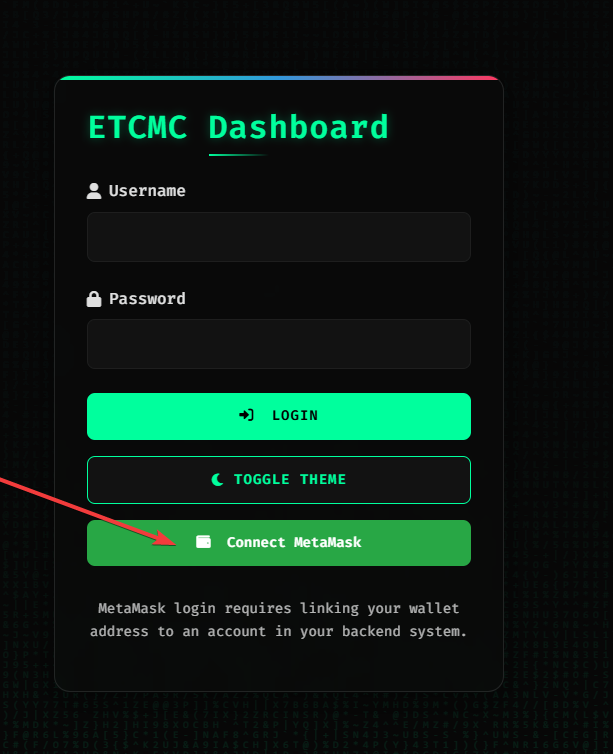
MetaMask signature request when logging into the ETCMCv2 Miner Dashboard (click to enlarge).
You are only signing a login message.
This does NOT send funds or create a transaction.
The request will show:
Network: Ethereum Classic
Request from: etcmc-monitor.org
Message:
Please sign this message to login to Miner Dashboard.
3) Account Settings
After login:
Go to the top-right corner
Click Settings
Press Account Update
You will see fields like:
Username
Email Address
Email Notifications
Wallet Address
Telegram Chat ID
API Token
4) Email Notifications
Email notifications alert you when:
Transactions are received
Account activity changes
If you enable notifications:
Enable Email Notifications
Replace the placeholder email address
Enter your real email address
Click Update Account
If you enable notifications but keep the placeholder email, you will not receive anything.
5) Telegram Notifications (Recommended)
To receive node status alerts via Telegram:
https://t.me/ETCPOW_Bot
Steps:
Open the bot
Press Start
Send: /start
Then send: /config
The bot will reply with something like:
Your chat ID is: 6421013242
To receive notifications about your node status,
please update your account at etcmc-monitor.org/account_update
with this Chat ID.
That number is your Telegram Chat ID.
Now:
Copy the Chat ID
Paste it into the Telegram Chat ID field in Settings
Click Update Account
You will now receive node status notifications 🔔
6) Understanding the Dashboard
Once connected and configured, the dashboard shows:
.png)